How to Recover a Forgotten Apple ID: Ultimate Step-by-Step Guide
Losing access to your Apple ID can feel like hitting a brick wall. Without it, you cannot download apps from the App Store, sync your photos to iCloud, or even properly use your iPhone. Fortunately, Apple provides several straightforward pathways to help you retrieve your account information and get back on track.
Whether you are using an iPhone, an iPad, a Mac, or just a web browser, here is the complete, step-by-step guide on how to recover your forgotten Apple ID.
Part 1: How to Find Your Apple ID If You Forgot It
Before you can reset a password, you first need to confirm the email address or phone number associated with your Apple account. If you aren't sure what your Apple ID is, try these methods:
Method 1: Check Devices Where You Are Already Logged In
Often, your Apple ID is already active on one of your other Apple devices.
On iPhone or iPad: Go to Settings, tap your [Your Name / Profile] at the top. Your Apple ID email address will be displayed right beneath your name.
On Mac: Go to the Apple menu () > System Settings (or System Preferences), click your Apple ID (or name) in the sidebar. You will see your account email listed there.
On Apple TV or Apple Watch: Check the settings menu under accounts or iCloud.
Method 2: Look Up Your Apple ID on the Web
If you don't have access to an active device, Apple has a dedicated lookup tool.
Open any web browser and go to the official Apple ID account page.
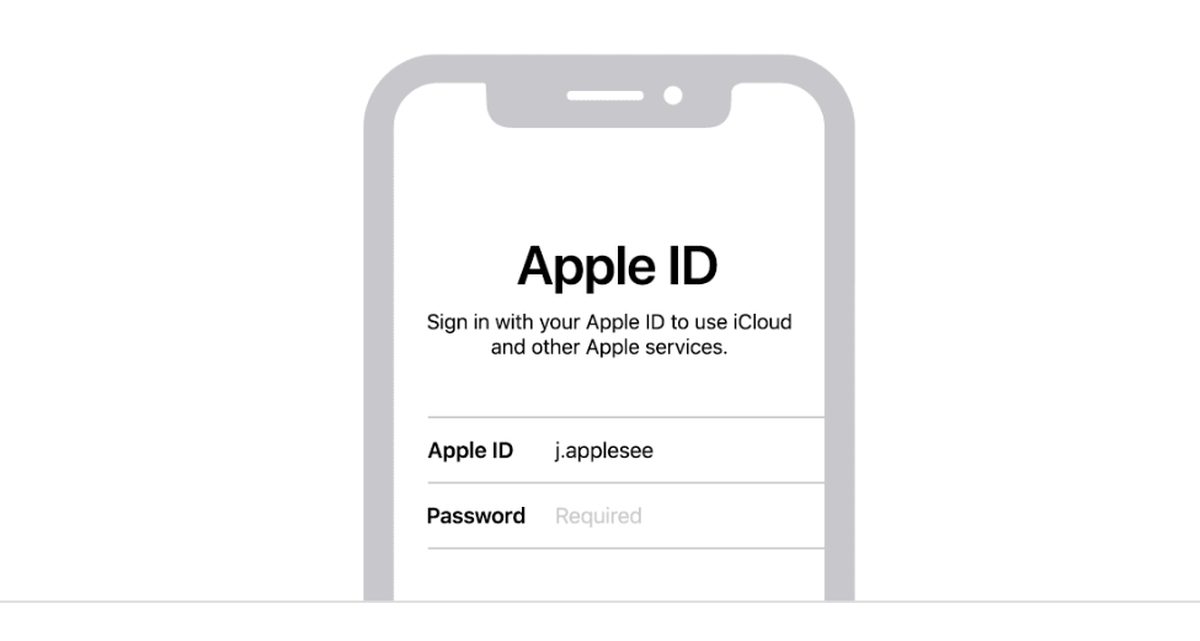
Below the password entry fields, click on the link that says "Look it up".
Enter your First Name, Last Name, and the Email address(es) you might have used to register.
Follow the on-screen prompts to verify your identity (via email or phone number).
Part 2: How to Reset Your Apple ID Password
Once you have successfully identified your Apple ID, you may need to reset your password if you've forgotten that as well.
Method 1: Reset Using Your iPhone, iPad, or Apple Watch
If you have a trusted Apple device nearby, this is usually the fastest method:
Open Settings on your iOS or iPadOS device.
Tap your name, then tap Sign-In & Security.
Select Change Password.
Enter your device passcode, then type and confirm your new password.
Method 2: Reset Using the Apple Support App
If you don't own the device you are trying to fix, but have access to another Apple device belonging to a friend or family member:
Download the Apple Support app from the App Store onto that device.
Go to the Support tab, select Passwords & Security, and tap Reset Apple ID password.
Tap "A different Apple ID" and enter your account username.
Follow the remaining verification steps to update your credentials.
Method 3: Reset on the Web (Any Browser)
If you are on a Windows PC or an Android device:
Visit iforgot.apple.com.
Enter your Apple ID and complete the security verification characters.
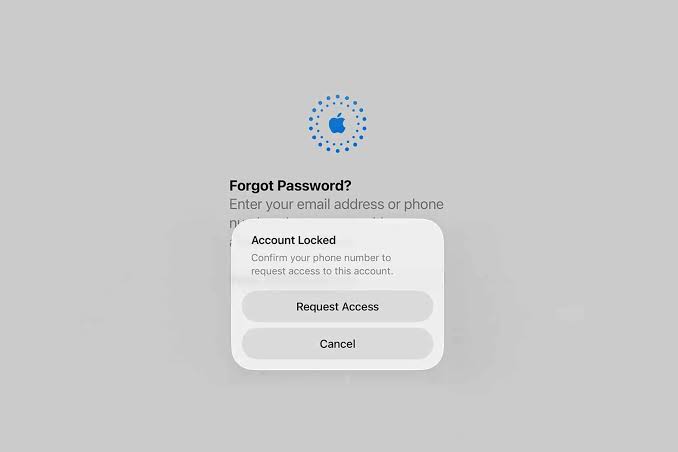
Choose how you want to reset your password—either via email verification or by receiving a prompt on a trusted phone number.
Follow the instructions sent to your recovery channel to create a strong new password.
Pro-Tips to Prevent Future Lockouts
To avoid going through the recovery hassle again, consider implementing these simple security habits:
Use a Password Manager: Store your Apple ID credentials securely in a trusted password manager rather than relying on memory.
Update Recovery Contacts: Set up a recovery contact in your iCloud settings who can help verify your identity if you ever get locked out completely.
Keep Trusted Phone Numbers Current: Ensure your active mobile number is always tied to your Apple account for two-factor authentication (2FA) prompts.
By following these steps, you should have your Apple ID recovered and your devices fully functional in no time!